
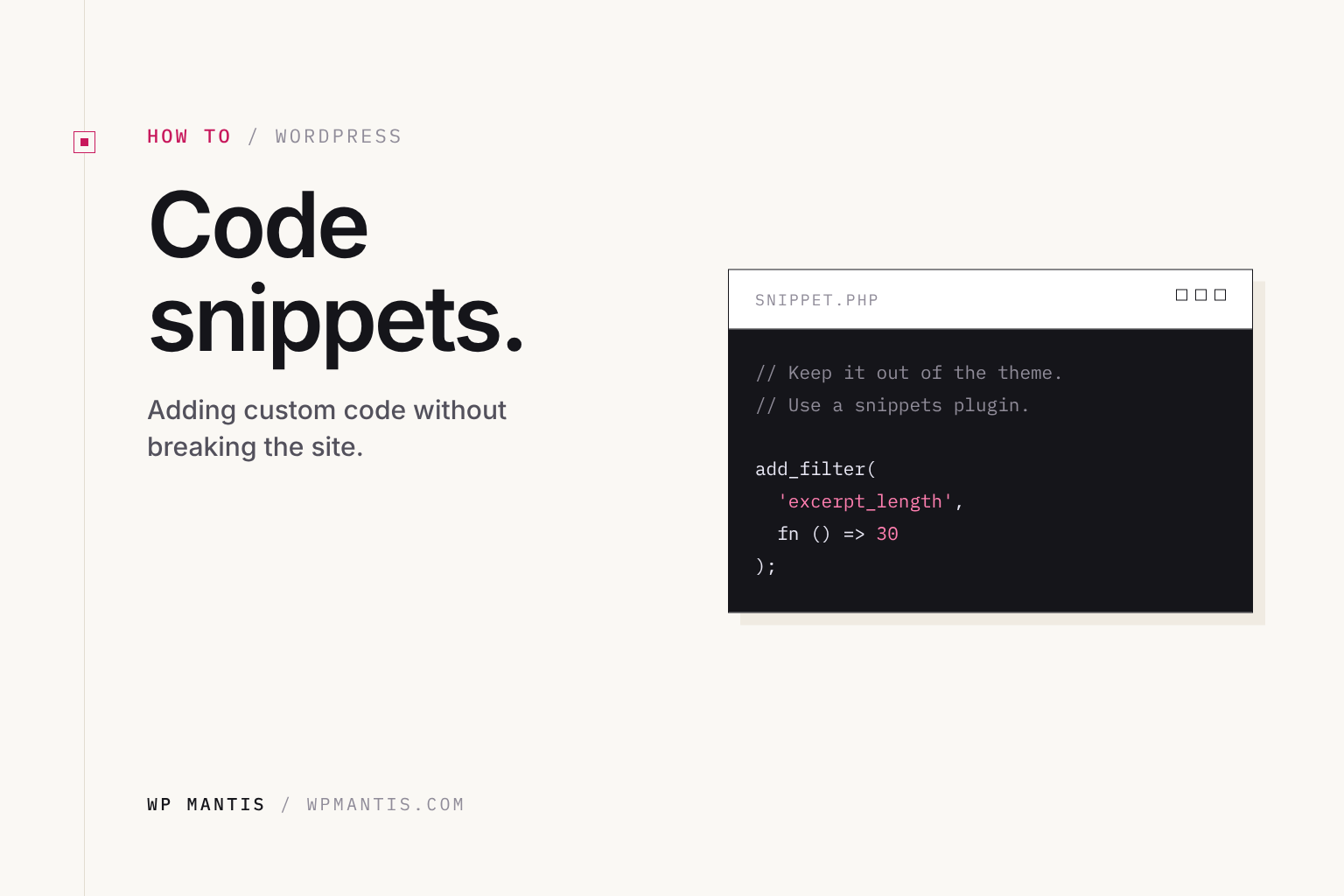
Tutorials (including ours) often say “add this snippet to your site.” Where you put it matters. The wrong place can crash the site, or lose your code the next time the theme updates. Here are the two safe options and the ones to avoid.
First, back up
Take a backup, or work on a staging copy if your host provides one. A single missing semicolon in PHP can take a site down.
Option 1: A snippets plugin (recommended)
A snippets plugin stores each piece of code separately, lets you turn snippets on and off, and catches many errors before they break your site. We use WPCodeBox on client sites; the free Code Snippets plugin works the same way for most needs.
- Install and activate the plugin.
- Create a new snippet and give it a clear name, like “Use GD for image uploads.”
- Choose the code type (PHP, CSS or JavaScript) and where it should run.
- Paste in the code and save.
- Turn the snippet on, then check the site in a private browser window.
Snippets survive theme changes and updates, and anyone looking after the site later can see exactly what was added and why.
Option 2: Your child theme’s functions.php
If you already use a child theme, its functions.php is a fine home for code that belongs to the site’s design. Edit it over SFTP or your host’s file manager, not from the dashboard, so you can undo a mistake immediately. Add your code at the end of the file, and don’t add a closing ?> tag.
Never add code to a parent theme’s functions.php. The next theme update replaces the file and your code disappears.
What to avoid
- The dashboard’s theme file editor. One typo and you’re locked out with no way to undo it from the dashboard. We turn this editor off on client sites with
DISALLOW_FILE_EDIT. - Editing plugin files. Updates overwrite them, and you lose the change.
- Copying code you don’t understand from old tutorials. Check the date, and test on staging first.
If a snippet breaks the site
WordPress has a built-in recovery mode. When a fatal error happens, it emails the site’s admin address a special link that logs you in with the faulty plugin or theme paused. In a snippets plugin, turn the bad snippet off. If you edited functions.php, remove the code over SFTP. Our guide to handling a WordPress critical error covers this in detail.
Want someone to add it?
If you’d rather not touch code on a live site, our $79 one-time fix can add and test it for you. On a Care Plan, small changes like this are covered.