
There are three sensible ways to get a Gravity Forms submission into Salesforce: the official Salesforce Add-On, an automation service such as Zapier, or a custom connection built for your process. All three work. Which one is right depends on what a submission should create in Salesforce, and what happens when it fails.
This guide is for the person who has to decide. It covers the options, what you need in place first, the problems we see most often, and when it is worth having someone build it for you.
The options at a glance
| Option | Best for | You need | Watch for |
|---|---|---|---|
| Official Salesforce Add-On | Most businesses. Leads, contacts, accounts, cases and custom objects straight from a form | A Gravity Forms license that includes it, and Salesforce API access | Sends data one way, from the form to Salesforce |
| Zapier or a similar service | Simple lead capture, or sending the same entry to several tools | The Gravity Forms Zapier Add-On and a paid automation plan | A monthly cost that grows with volume, and one more place for things to break |
| Salesforce Web-to-Lead | Accounts without API access that only need leads | The Webhooks Add-On or custom code to post the entry | Leads only, a daily cap, and very little feedback when it fails |
| A custom connection | Lookups, updates, several related records, or data coming back to the site | A developer | It costs more up front, so it has to earn it |
Start with the official add-on
Gravity Forms publishes its own Salesforce Add-On, and for most businesses it is the right first choice. You connect your Salesforce account once, then add a feed to each form. A feed says which Salesforce object to create and which form field goes into which Salesforce field.
- Standard and custom objects. Leads, contacts, accounts, opportunities, cases, and objects your Salesforce admin has created.
- More than one feed per form. A single submission can create a contact and a case, for example.
- Conditional feeds. Run a feed only when the entry meets a condition, such as a particular service or budget.
- Create or update. Feeds can update an existing record when a match is found, which helps keep duplicates down.
It is built and supported by the same team as Gravity Forms, so it keeps pace with Gravity Forms updates. That matters more than it sounds: third-party connectors are where most “it stopped working after an update” stories come from.
What you need before you start
- The right Gravity Forms license. The Salesforce Add-On is included with the Elite and Nonprofit licenses. Check the current Gravity Forms pricing before you plan around it.
- Salesforce API access. The add-on talks to Salesforce through its API, and not every Salesforce edition includes API access. Confirm this with Salesforce first. It is the most common reason a project stalls on day one.
- A Salesforce admin. Someone has to authorize the connection and knows which fields are required on each object.
- A decision about what a submission creates. Covered next, because it shapes everything else.
Decide what each form should create
“Send it to Salesforce” is not a specification. Before anyone builds a feed, write down what each form should produce.
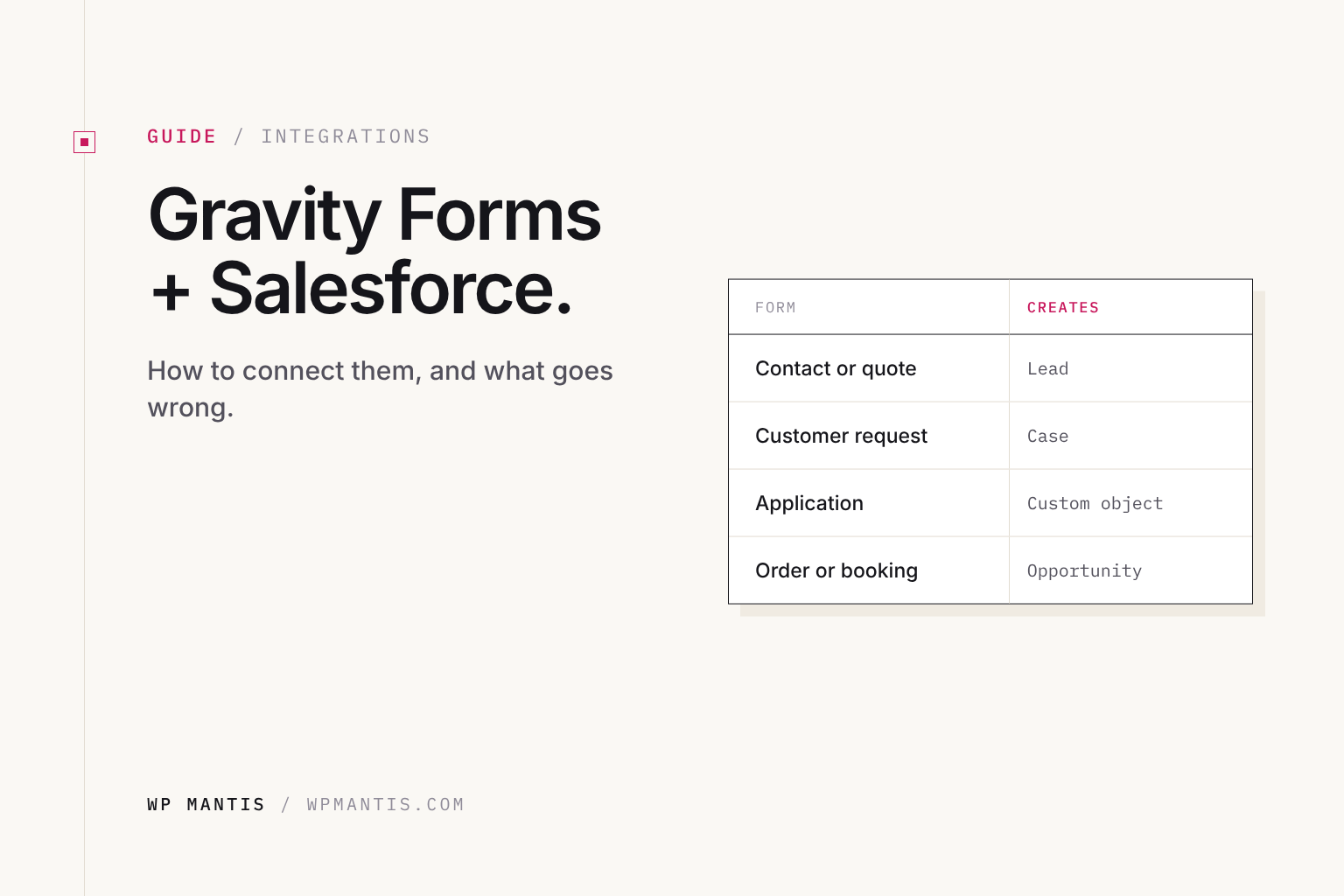
| Form | Usually creates | Questions to settle first |
|---|---|---|
| Contact or quote request | A lead | Who owns new leads? What marks one as qualified? |
| Existing customer request | A case, linked to a contact | How do you match the person to a contact you already have? |
| Application or enrollment | A contact plus a custom object | Which fields are required before staff can act on it? |
| Order or booking | An opportunity, or a custom object | Does it need an account first? Who is notified? |
| Newsletter sign-up | A lead or a campaign member | Does marketing consent need recording? |
If the answer for a form is “it depends”, that is a conditional feed, and the condition needs to be something the form actually asks.
Where these integrations go wrong
Connecting the two takes an afternoon. Keeping the data clean takes thought. These are the problems we are asked to fix most often.
A required Salesforce field is not mapped
Salesforce rejects a record that is missing a required field. A lead needs a last name and a company, for example. If your form does not collect one of them, the feed fails. Either collect it, or map a fixed default value.
Picklist values do not match
If a Salesforce field is a restricted picklist, the value the form sends has to match one of its options exactly. “Phoenix Metro” on the form and “Phoenix” in Salesforce is a failed record. Set the choice values in the form to the values Salesforce expects.
Duplicates, or records blocked as duplicates
Salesforce duplicate rules apply to records created through the API too. Depending on how yours are set, a returning customer either creates a second record or is blocked outright. Decide what should happen when someone already exists, and build the feed around that.
Validation rules written for staff, not for forms
A rule that makes sense for a salesperson typing into Salesforce can reject every web submission. Your Salesforce admin may need to adjust a rule or allow for records that arrive from the website.
Failures nobody sees
This is the expensive one. The visitor sees the thank-you message, the entry is saved in WordPress, and the record never reaches Salesforce. Nobody knows until a customer asks why no one called.
- Check the notes on a test entry after every change. Gravity Forms records there whether the feed ran.
- Turn on Gravity Forms logging while you are setting up and testing.
- Keep the entry in WordPress. It is your backup copy when Salesforce says no.
- Send an internal notification for the forms that matter, so a person sees every submission whatever happens downstream.
Expecting it to be two-way
The add-on sends data from the form to Salesforce. It does not pull Salesforce data back to pre-fill a form or show a customer their account. That is possible, but it is custom work.
When something should be reviewed first
Not every submission should land in Salesforce the moment it is sent. Applications, large quotes and partner requests often need a person to look first. Gravity Flow can hold the Salesforce step until an earlier step is approved, so only reviewed records reach your CRM. This is how we build most of our Systems work: the form takes the request, the workflow routes it, and Salesforce gets the result.
Do it yourself, or have it built
Doing it yourself is reasonable when
- One or two forms create leads or contacts.
- Your Salesforce setup is close to standard.
- Someone on your team administers Salesforce and can read an error message.
Bring someone in when
- A submission has to create or update several related records.
- The form needs to look something up in Salesforce before it decides what to do.
- Submissions need approval, routing or payment before they reach Salesforce.
- The data is sensitive and you need to know exactly where it is stored and who can see it.
- It has already failed once and nobody is sure how many records were lost.
What we build
We build on Gravity Forms and Gravity Flow every day, and connecting them to a CRM is a routine part of that. A typical project is a short one: map what each form should create, build and test the feeds against your real Salesforce rules, add the checks that tell you when something fails, and document it so your admin can maintain it.
When the standard add-on is not enough, we write the connection as custom development, and you own the code. Tell us what the form needs to do and we will tell you which route fits, including when the answer is the add-on and an afternoon of your own time.
Common questions
Which Gravity Forms license do I need for Salesforce?
The official Salesforce Add-On is included with the Elite and Nonprofit licenses. On other licenses, the usual route is the Zapier Add-On with an automation service in between.
Does it work with every Salesforce edition?
Only with editions that include API access, or where API access has been added. Ask Salesforce about your edition before you buy anything.
Can it send data to custom objects?
Yes. The add-on works with custom objects as well as the standard ones.
Can it update an existing record instead of creating a new one?
Yes, feeds can update a matching record. How well that works depends on choosing the right field to match on, usually an email address.
Is the connection two-way?
No. Data goes from the form to Salesforce. Bringing Salesforce data back into WordPress is custom development.
Should I still keep entries in WordPress?
Yes. The entry is your record of what was submitted, and it is what lets you resend a record after a failure.