
A custom dashboard widget is a simple way to put instructions, a training video or your support contact right where a client lands when they log in. It takes a few lines of code and no extra plugin.
The code
Add this to a small custom plugin or your child theme’s functions.php:
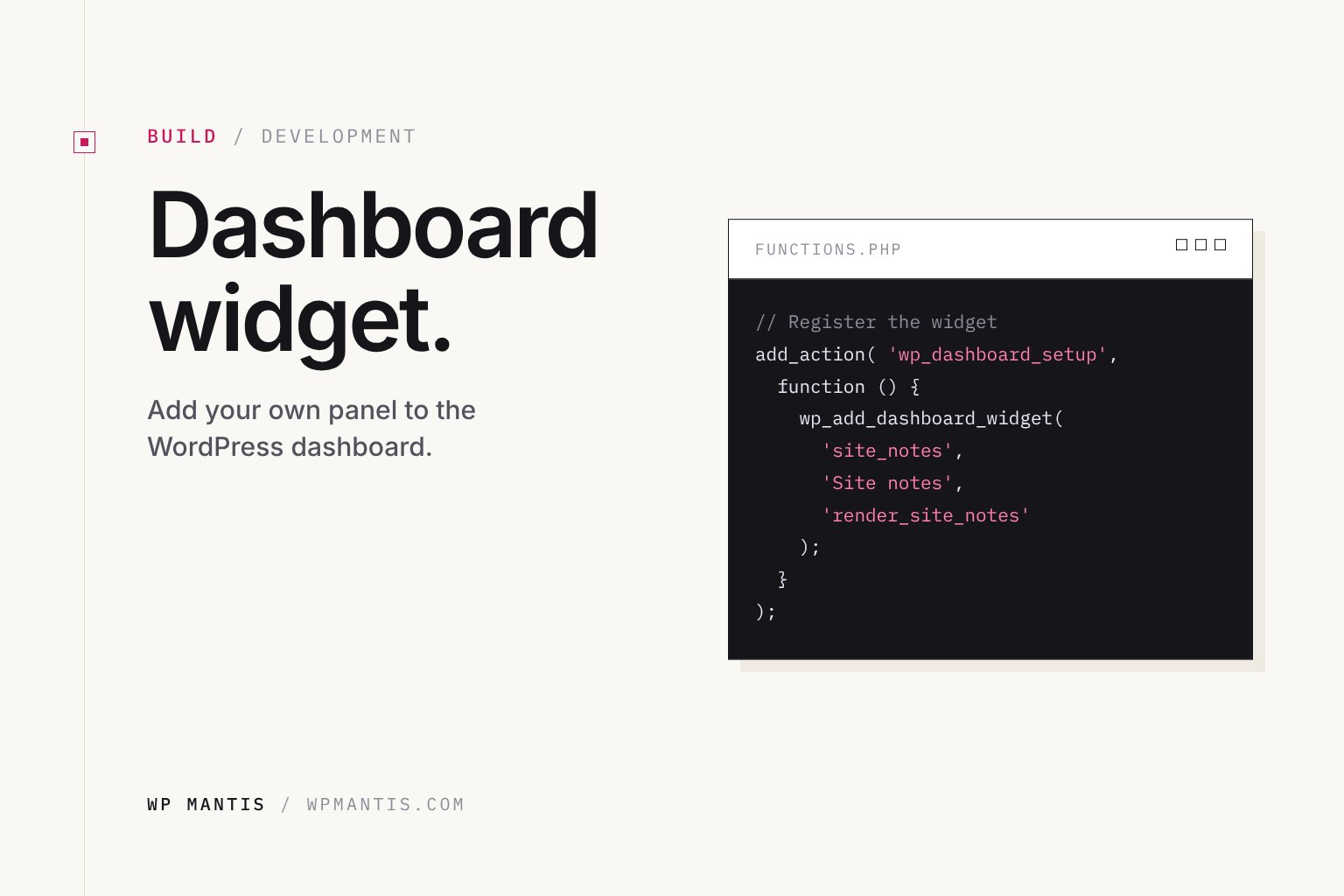
add_action( 'wp_dashboard_setup', function () {
	wp_add_dashboard_widget(
		'mysite_help_widget',          // Widget ID.
		'Website help',                // Title.
		'mysite_render_help_widget'    // Callback that outputs the content.
	);
} );

function mysite_render_help_widget() {
	?>
	<p>Need to add a new listing? Watch the two-minute walkthrough:</p>
	<p><a href="https://example.com/training-video" target="_blank">Watch the training video</a></p>
	<p>Questions? Email <a href="mailto:[email protected]">[email protected]</a>.</p>
	<?php
}
Reload the dashboard and the widget appears. Users can drag it, collapse it or hide it from Screen Options like any other widget.
Show it only to certain users
Wrap the wp_add_dashboard_widget() call in a capability check. For example, show it only to people who can edit posts but are not administrators:
if ( current_user_can( 'edit_posts' ) && ! current_user_can( 'manage_options' ) ) {
	// wp_add_dashboard_widget( ... );
}
Put it at the top
New widgets are added at the bottom of the main column. To move yours to the top for everyone, reorder the global $wp_meta_boxes array after adding it, as shown in the Dashboard Widgets API documentation.
Ideas for client sites
- Links to short how-to videos for the tasks they do most
- Who to contact for support, and what your Care Plan covers
- A checklist for publishing a new post or product
- Recent form submissions or orders, pulled from a plugin’s data
Need something more custom?
Custom admin tools and workflows are part of our custom development work. Tell us what you need.