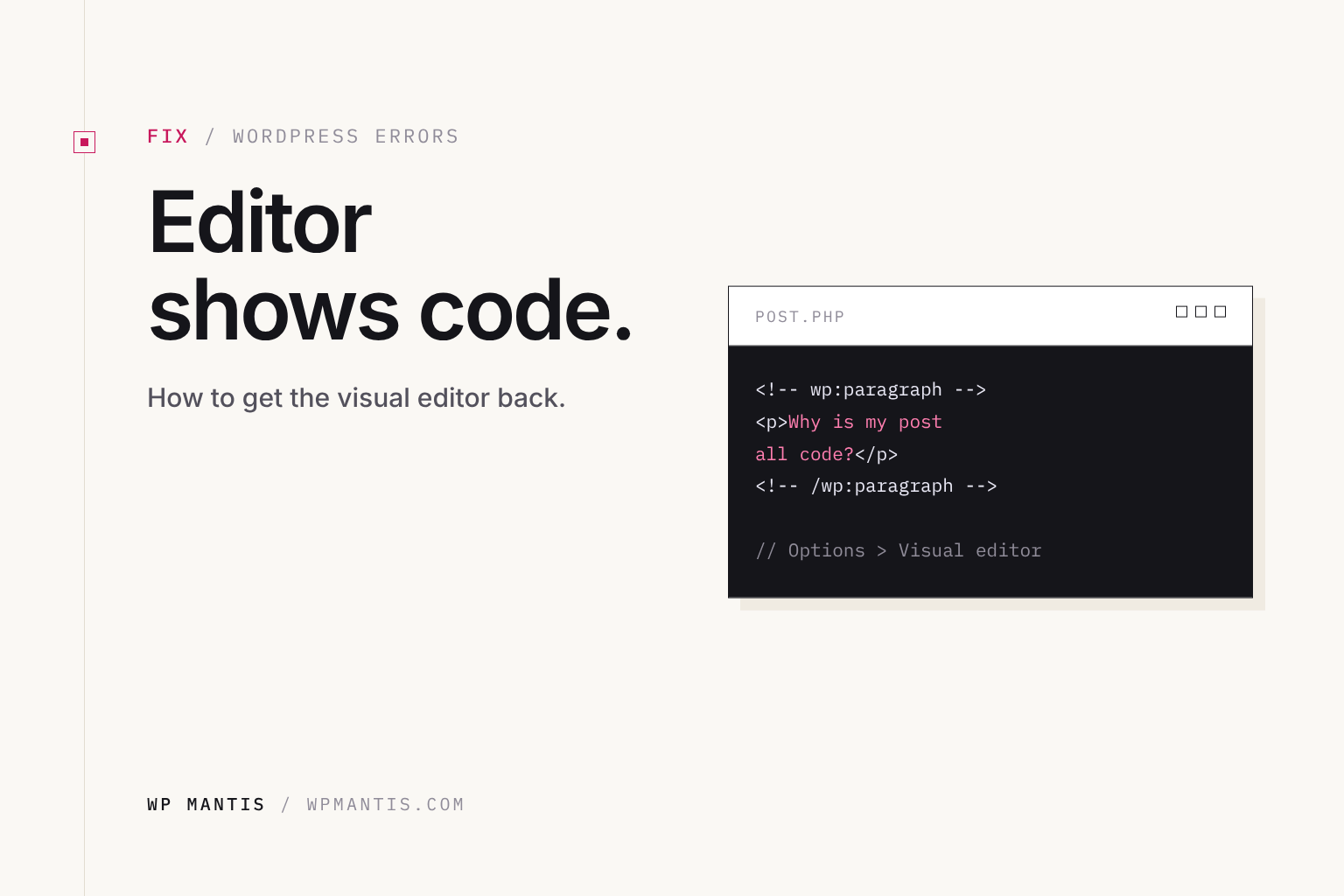
You open a post to edit it and all you see is HTML code, or the Visual and Text tabs are missing from the editor. It looks broken, but it’s almost always a setting. Which one depends on the editor you’re using.
First, work out which editor you have
The fix is different for each editor, so check this before anything else.
- Block editor: the content is made of separate blocks, and there is a blue + button at the top left for adding more. This is the default on every current WordPress site.
- Classic editor: one large text box with a single toolbar above it, and Visual and Text tabs at its top right corner.
- A page builder: if the page was built with Elementor, Divi or a similar tool, skip to the page builder section.
In the block editor
The block editor doesn’t have Visual and Text tabs. It has a Code editor mode that shows the whole post as HTML, and it’s easy to switch on by accident.
- Click the three-dot Options menu at the top right of the editor.
- Under Editor, choose Visual editor.
The keyboard shortcut Ctrl+Shift+Alt+M (Cmd+Shift+Option+M on a Mac) toggles between the two, which is how most people end up there without meaning to.
If only one block shows code, that block is set to edit as HTML. Select it, open the block’s three-dot menu, and choose Edit visually.
If Visual editor is missing from the Options menu
The profile setting described in the classic editor section below also applies to the block editor. When it is switched on for a user, that person only gets the code view, with no way to switch back from the editor itself. Check their profile.
If one block is a Custom HTML block
A Custom HTML block always shows code while you edit it. That is what it is for. Use its preview option to see the result. If the block holds ordinary text and headings that ended up there by mistake, open the block’s three-dot menu and choose Convert to blocks.
If an old post opens as one big block
Posts written before the block editor open inside a single Classic block. That is normal and nothing is lost. You can keep editing it as it is, or choose Convert to blocks in the block toolbar to split it into regular blocks.
In the classic editor
If your site uses the Classic Editor plugin and the Visual and Text tabs are gone, check the user’s profile. There’s a setting that turns the visual editor off for that one person, which is why it can look fine for you and broken for someone else.
- Go to Users and edit the user who has the problem (or Profile if it’s you).
- At the top, find Visual Editor: Disable the visual editor when writing.
- Uncheck it and click Update Profile.

If the tabs are there but clicking Visual does nothing
The setting is fine and a script is failing. Press F12 to open your browser’s developer tools, click the Console tab and reload the editor. Red error lines there usually name the file that broke, and the folder in its address tells you which plugin it belongs to.
Two fixes solve most of these:
- Script optimization on the dashboard. Features that combine, defer or delay JavaScript should not run on admin pages. Cloudflare’s Rocket Loader is a common one. Turn it off, or exclude
/wp-admin/. - Script loading in the dashboard. Add
define( 'CONCATENATE_SCRIPTS', false );towp-config.php. It makes WordPress load its admin scripts one at a time, which gets around a bad combined file.
If the setting isn’t the cause
- Browser cache or extensions. Try a private window. If the editor works there, clear your cache or turn off extensions one at a time.
- A plugin conflict. A broken script from one plugin can stop the editor from loading its visual mode. Our plugin conflict guide shows how to find it.
- A security or caching plugin minifying or blocking the editor’s scripts. Exclude the admin area from optimization.
If the page was built with a page builder
Open a page builder page in the normal WordPress editor and you will often see shortcodes or code instead of your layout. Nothing is broken. Edit the page with the builder’s own button, such as Edit with Elementor.
If the code is showing to visitors on the live page, the builder plugin has been deactivated or its license has lapsed. Reactivate it and the layout comes back.
If visitors see HTML tags on the page
This is the reverse problem. Code was pasted into the visual view, so WordPress treated the tags as text and is displaying them. Delete that text and paste the code into a Custom HTML block instead. If the text came from Word or Google Docs, paste it with Ctrl+Shift+V (Cmd+Shift+V on a Mac) so the formatting from the document is left behind.
Common questions
Did I lose my formatting?
No. The code view and the visual view are two ways of looking at the same content. Switching back shows everything as it was.
Why does it only happen for one person?
Because the visual editor setting is saved per user. Someone ticked the box on their own profile, or it was ticked when the account was created.
It started right after an update. Why?
An update changed a script that something else depended on. Start with the Console check above, then work through our plugin conflict guide. If you need the site working today, roll the update back and sort out the cause afterwards.
Still showing code?
If you’ve tried these and the editor still won’t switch, our $79 one-time fix will find the cause and fix it.