
You click upload in the Media Library, or try to install a plugin or theme, and WordPress stops with one of these messages:
Unable to create directory wp-content/uploads/2026/10. Is its parent directory writable by the server?
The uploaded file could not be moved to wp-content/uploads/2026/10.

Both mean the same thing: WordPress can’t save the file where it’s trying to put it. I see this most often right after a site moves, from one host to another or from a developer’s server to the client’s account. It’s almost always one of four causes, and most take a few minutes to fix.
Quick answer
- Wrong upload path: clear the “Store uploads in this folder” setting, or the
upload_pathoption, so WordPress uses the defaultwp-content/uploads. - Wrong permissions or owner: set folders to 755 and files to 644, owned by the user your site runs as.
- Full disk: free up space or raise your hosting plan’s storage.
- Host or security plugin blocking writes: check its file-protection settings.
First, confirm it’s the uploads folder
WordPress can tell you directly. Go to Tools → Site Health → Info and open Filesystem Permissions. Find “The uploads directory.” If it says Not writable, keep going. While you’re there, check Directories and Sizes to see where WordPress thinks your uploads folder is. If that path points to an old server, you’ve found your problem.
Fix 1: Reset the upload path
WordPress stores an optional custom upload path in the database. After a migration, that path can still point to the old server (something like /home/olduser/public_html/wp-content/uploads), and WordPress can’t write to a folder that doesn’t exist on the new one.
From the WordPress dashboard
- Go to Settings → Media.
- Look for Store uploads in this folder. WordPress only shows this field when a custom path is set, so if you see it, that’s a strong clue.
- Delete what’s in the box so it’s empty. WordPress then falls back to
wp-content/uploads. - Click Save Changes and try your upload again.

From the database
If the field isn’t on the Media screen, or you can’t reach the dashboard, edit the option directly. In phpMyAdmin (or your host’s database tool), open the wp_options table (your prefix may differ), find the rows named upload_path and upload_url_path, and clear their values. If you have WP-CLI, this does the same thing:
wp option update upload_path ''
wp option update upload_url_path ''
Fix 2: Correct the file permissions and owner
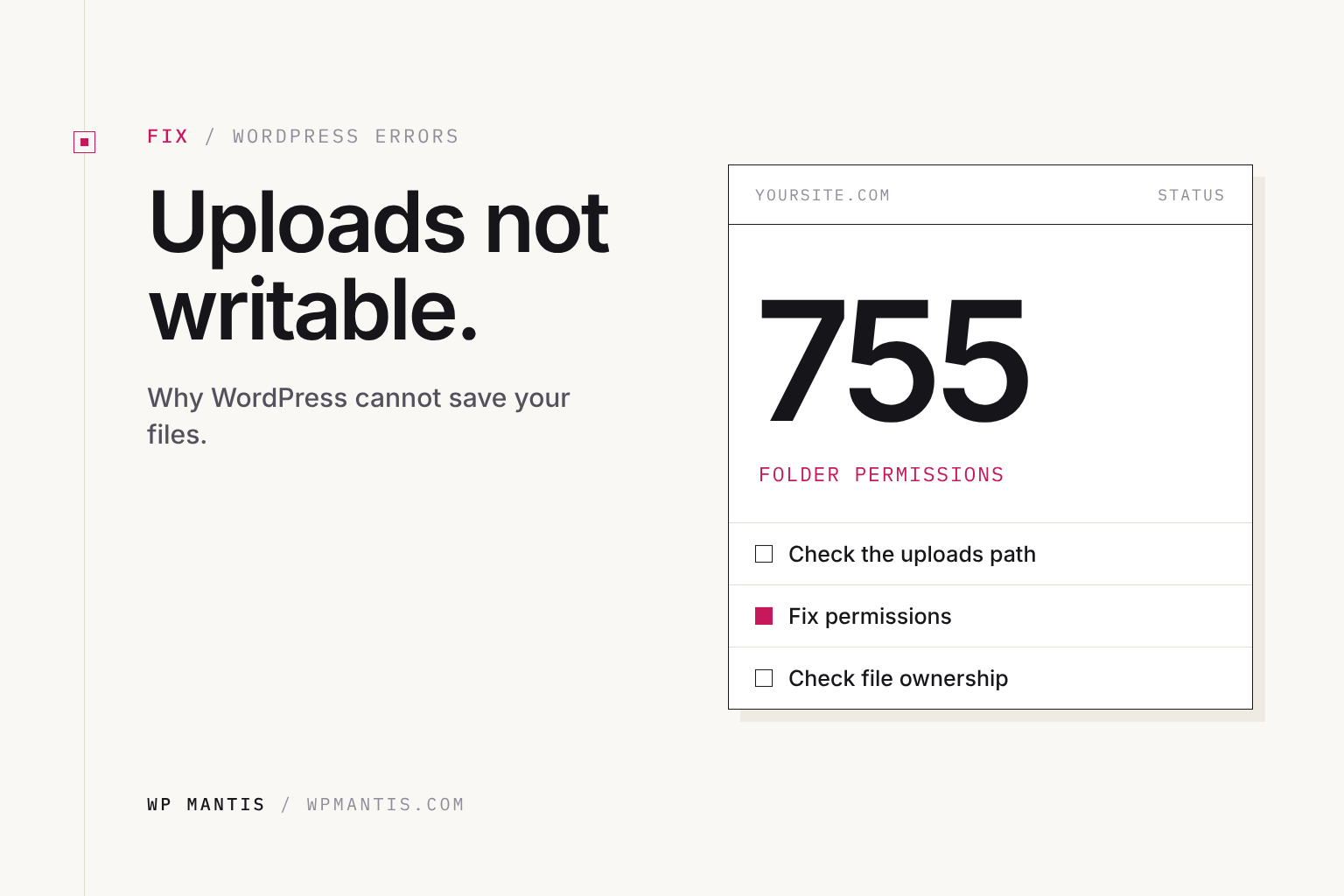
If the path is right but the folder still isn’t writable, the server doesn’t have permission to write there. Folders should be 755 and files 644, and they need to be owned by the user PHP runs as on your host. A folder owned by root or by an old account will refuse writes even with the right numbers.
Managed hosts can fix this in one click, so start there. In xCloud, open the site’s Settings → Rescue Site, turn on Update Directory Permissions, and click Run Now. In Cloudways, it’s Reset File Permission under the application’s settings. With SSH access, run this from the site’s root folder:
find wp-content/uploads -type d -exec chmod 755 {} \;
find wp-content/uploads -type f -exec chmod 644 {} \;
Don’t set folders to 777. It makes the error go away, but it lets anything on the server write to your uploads folder, which is a common way sites get infected.
Fix 3: Check your disk space
A full disk produces the same error. Backups stored on the server, old log files, and years of image sizes add up. Check storage in your hosting dashboard. If you’re at or near the limit, delete old local backups first (keep them off-site instead), then consider a plan with more space.
Fix 4: Look for something blocking writes
Some security plugins and hosts lock down folders to stop malware. If the error started right after you turned on a hardening setting, turn it off, test an upload, and then turn it back on with uploads excluded. Also check for an UPLOADS line in wp-config.php. It overrides the upload location for the whole site, so make sure it points to a folder that exists.
Still stuck?
If none of this works, or you’d rather not touch the database or file permissions, we’ll fix it for you. Our one-time fix is $79: a developer finds the cause, fixes it, and tells you what went wrong. If we can’t fix it, you get a full refund.