
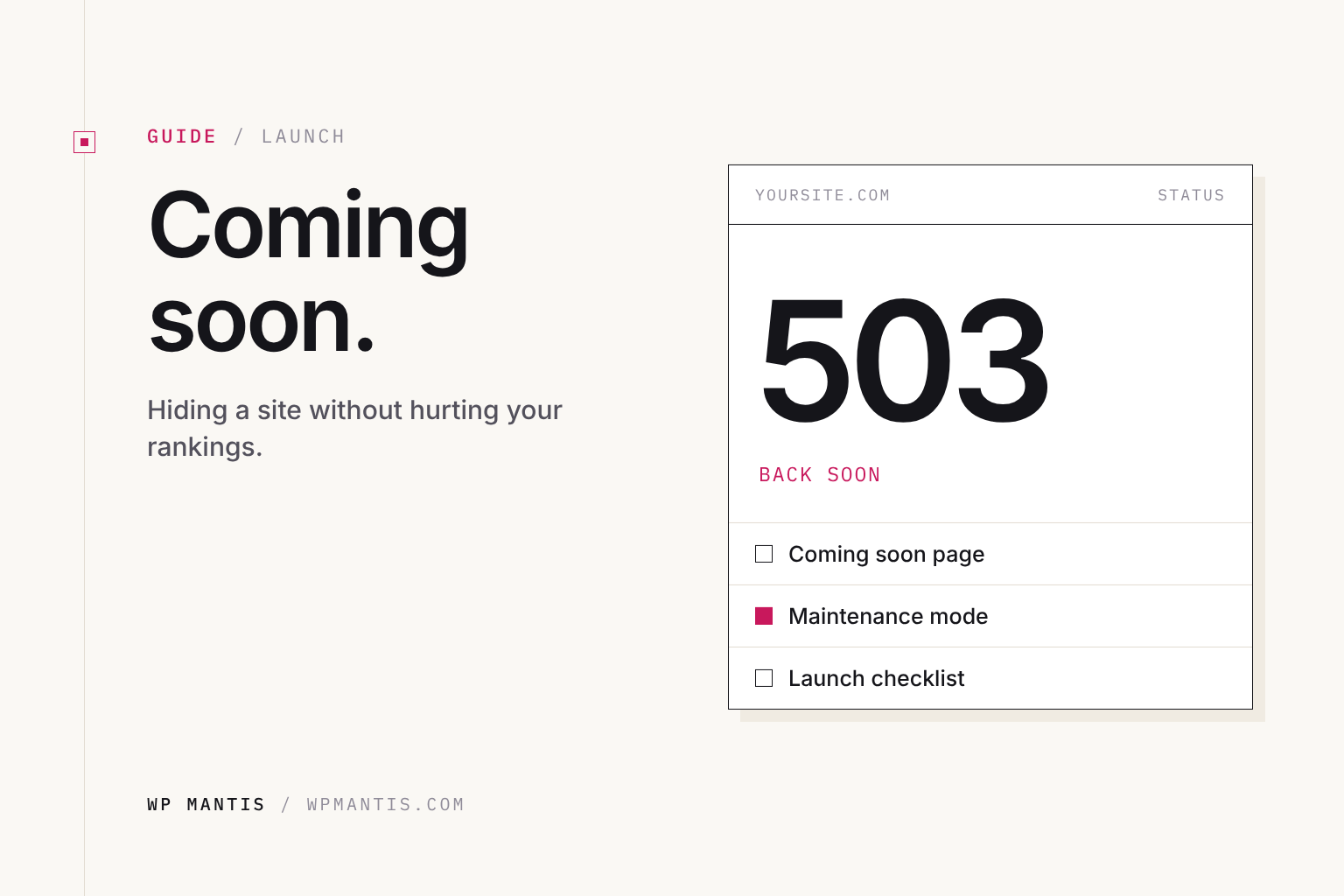
A coming soon page hides a site while it is being built. A maintenance mode page hides an existing site briefly while you work on it. Both are easy in WordPress, but get the details wrong and you can hurt your search rankings.
Coming soon vs. maintenance mode
- Coming soon: a new site that is not ready. Can stay up for weeks, collect email sign-ups, and should be indexable if you want the domain to start building presence.
- Maintenance mode: an existing site that is temporarily unavailable. Should be short, and must tell search engines it is temporary.
What to put on a coming soon page
A coming soon page is the first thing people see from your business, so give it one job: tell visitors who you are and give them a way to hear from you again.
- Your name and logo, and one sentence on what you do and who it is for
- Roughly when the full site launches, if you know
- An email sign-up, so interest is not wasted
- A phone number or email address for people who need you now
- Links to any social profiles you actually use
Skip the countdown timer unless the date is firm. A timer that hits zero with no site behind it looks worse than no timer.
Plugins that do it well
- SeedProd includes a coming soon and maintenance mode builder with templates and email integrations (the free version covers the basics).
- LightStart (formerly WP Maintenance Mode) is free and simple.
- Many themes and hosts have a built-in option too.
All of them let logged-in administrators see the real site while visitors see the placeholder.
The SEO detail that matters
Maintenance mode pages should return an HTTP 503 status with a Retry-After header. That tells Google the site is temporarily down, so it keeps your existing rankings. A placeholder that returns a normal 200 status can get indexed as your homepage instead. Check that your plugin uses 503 for maintenance mode.
How to check what your page returns
Open a private browser window so you are logged out, press F12, click the Network tab and reload the page. The first row shows the status code. From a terminal, this does the same:
curl -I https://yoursite.comFor maintenance mode, the first line should say 503. For a coming soon page, it should say 200.
Coming soon pages are the opposite
A coming soon page for a new site should return a normal 200 status and be open to search engines. Give it a real page title and meta description with your business name and what you do. Google can then start learning about the domain before launch.
One setting undoes all of this. Under Settings, then Reading, there is a checkbox labeled Discourage search engines from indexing this site. Developers often tick it during a build. If it is still ticked after launch, the new site will not show up in Google. It is the most common launch mistake we see.
Maintenance mode without a plugin
WordPress has its own maintenance mode. During updates it creates a file called .maintenance in the site’s root folder, shows visitors a short message, and returns a 503 status with a Retry-After header. It removes the file when the update finishes.
You can style that built-in message by adding a file at wp-content/maintenance.php. WordPress uses it in place of the default message whenever maintenance mode is on. For a few minutes of planned work, that is all most sites need.
Do you even need it?
- For a redesign: build on a staging copy and launch in one step. Visitors never see a placeholder.
- For updates: WordPress shows its own brief maintenance message during updates automatically. If it gets stuck, see fixing “Briefly unavailable for scheduled maintenance”.
- For a new site: a simple coming soon page with an email sign-up is worthwhile, especially if you are already promoting the launch.
Turning it off: a launch checklist
- Switch off coming soon or maintenance mode in the plugin.
- Clear every cache: the caching plugin, the host’s cache and the CDN.
- Open the site in a private window to see what visitors see.
- Under Settings, then Reading, make sure the search engine checkbox is not ticked.
- Send a test through every form and confirm the email arrives.
- Submit your sitemap in Google Search Console.
- Deactivate and delete the coming soon plugin if you will not use it again.
Common problems
I turned it off but visitors still see the placeholder
A cached copy is being served. You see the real site because you are logged in. Clear the caches listed above and check again in a private window.
Google is showing my placeholder in search results
The placeholder returned a 200 status long enough to be indexed. Once the real site is live, open Google Search Console, inspect the homepage URL and request indexing. It normally corrects itself within days.
The site is stuck on a maintenance message
An update was interrupted and the .maintenance file was left behind. See how to fix “Briefly unavailable for scheduled maintenance”.
Common questions
How long can a site stay in maintenance mode?
Keep it to minutes or hours. A 503 tells search engines to come back later, and they will, but a site that stays unavailable for days can start losing pages from search results. For longer work, use a staging site.
Can I still work on the site while it is hidden?
Yes. Logged-in administrators see the real site. That is also why you should always test in a private window, where you are logged out.
Building or redesigning a site?
We build new sites and redesigns on staging, so your current site stays live until launch day. Tell us about the project. For existing sites, our Care Plans run every update on staging first.