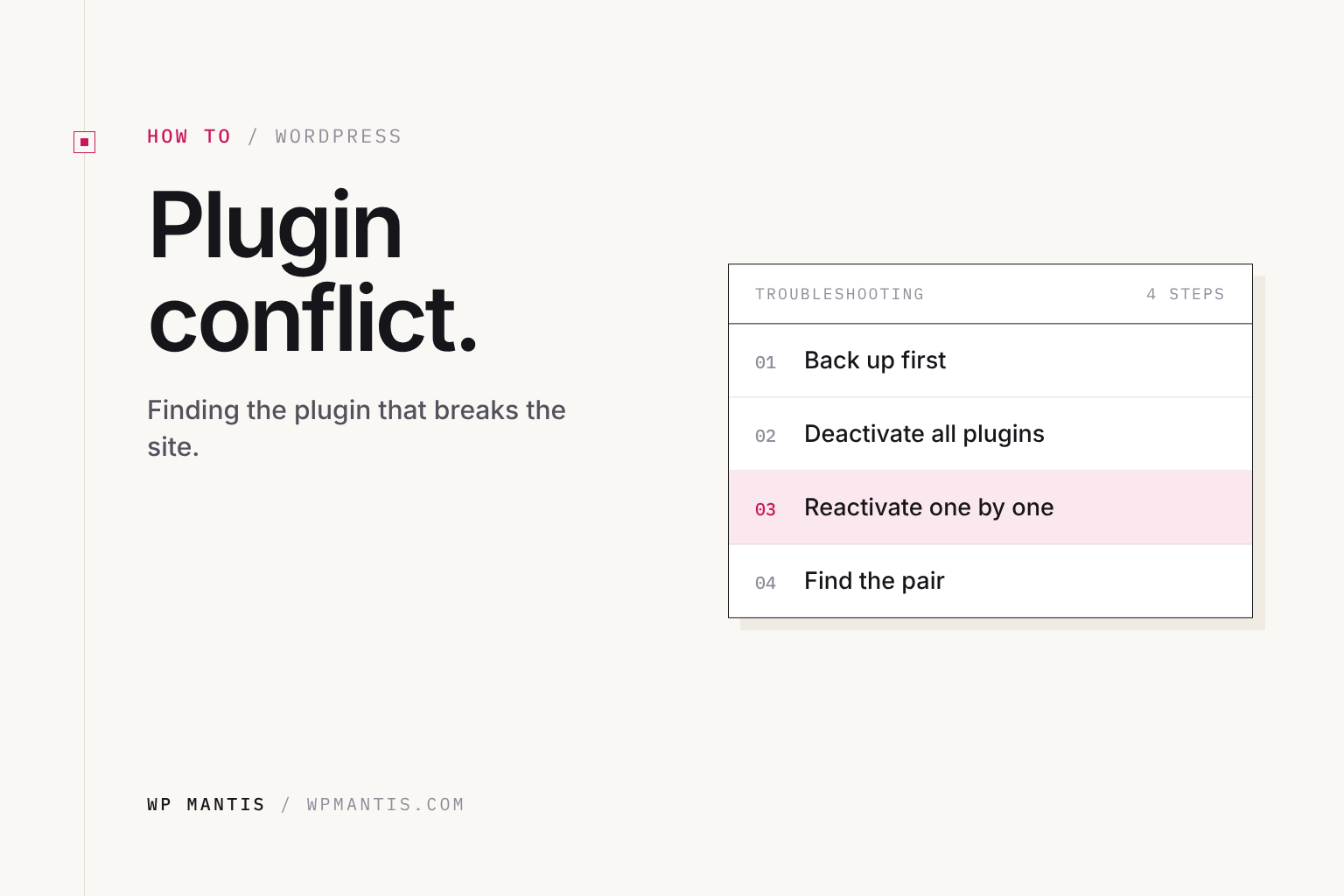
Most WordPress problems we fix come down to two pieces of code that do not get along: two plugins, a plugin and the theme, or a plugin and a new version of WordPress or PHP. Here is how to find the one causing trouble, starting with the method that does not affect your visitors.
Before you start
- Take a fresh backup.
- Write down exactly how to reproduce the problem (which page, which button, what you expected).
- Note what changed recently: an update, a new plugin, a PHP upgrade. That is often your answer.
Method 1: Health Check troubleshooting mode (recommended)
The free Health Check & Troubleshooting plugin, maintained by the WordPress community, lets you disable plugins and switch themes for your login session only. Visitors still see the normal site.
- Install and activate Health Check & Troubleshooting.
- Go to Tools → Site Health → Troubleshooting and click Enable Troubleshooting Mode. All plugins are disabled and a default theme is active, just for you.
- Try to reproduce the problem. If it is gone, a plugin or the theme is responsible.
- Use the Troubleshooting Mode menu in the admin bar to enable plugins one at a time, testing after each.
- When the problem returns, the last plugin you enabled is involved. Disable troubleshooting mode when you are done.
Method 2: a staging copy
If your host offers one-click staging, clone the site and test there. You can deactivate everything without worry, and it is the safest place to test updates too.
Speed it up: split in half
With 30 plugins, testing one at a time is slow. Enable half of them. If the problem appears, the culprit is in that half; if not, it is in the other half. Keep halving until you are down to one. Five or six rounds finds it among 30 plugins.
If you cannot reach the dashboard
Rename the wp-content/plugins folder over SFTP to disable all plugins at once, then rename it back and reactivate them one by one. See fixing the white screen of death for more.
Found it. Now what?
- Check for an update to the plugin, or a known issue in its support forum.
- Contact the plugin developer with the steps to reproduce and the other plugin involved.
- Look for an alternative plugin that does the same job.
- Roll back to the previous version temporarily while the developer fixes it.
Want someone else to find it?
Tracking down conflicts is everyday work for us. Our $79 one-time fix covers one issue, fixed or your money back, and a Care Plan tests every update on staging so conflicts get caught before your visitors see them.