
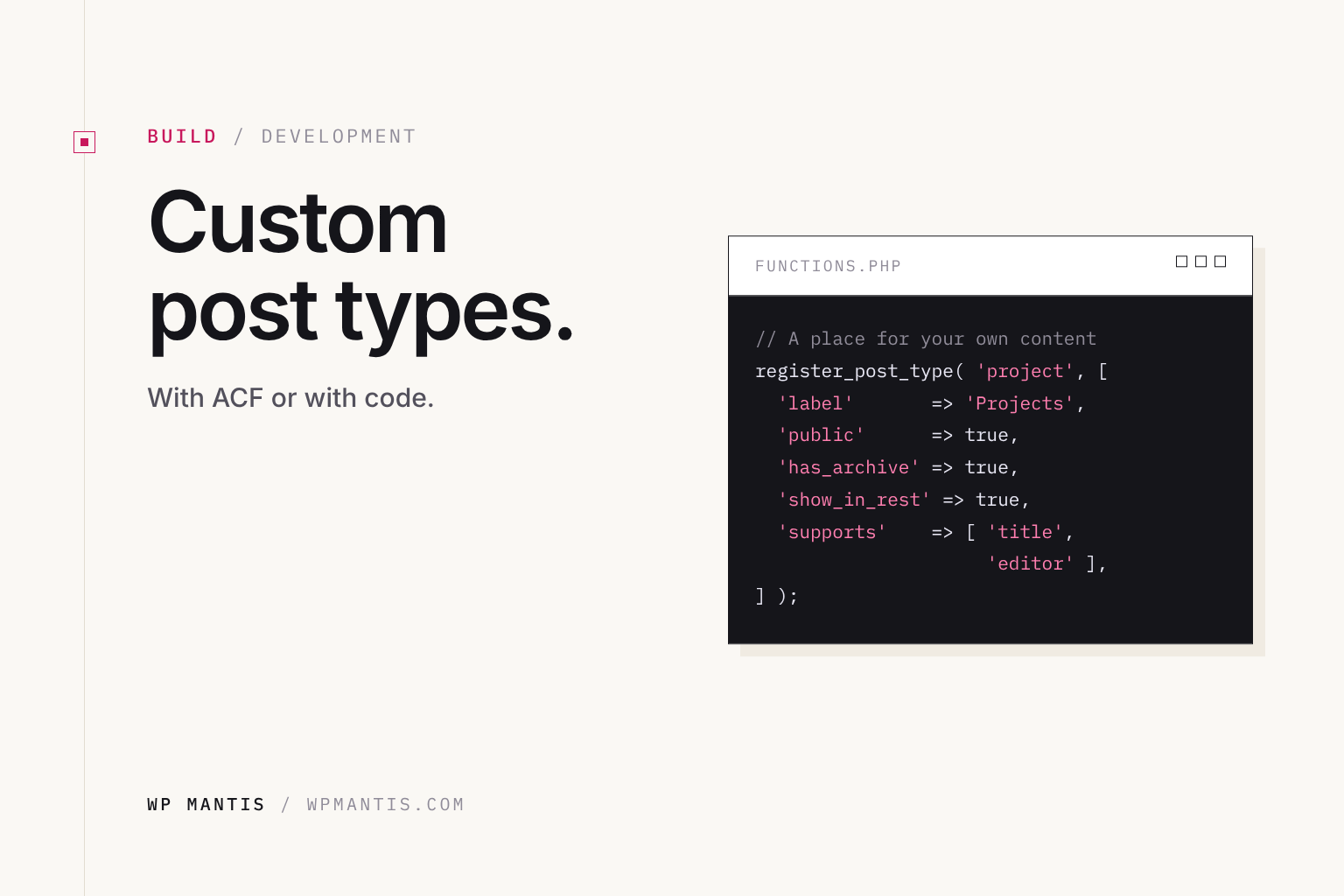
A custom post type keeps one kind of content separate from your blog posts and pages: team members, case studies, recipes, locations, events. Your client gets a clear menu item in the dashboard, and you get templates and fields built for that content. Here are the two ways we create them.
When to use a custom post type
Use one when you have many items of the same kind, each with the same pieces of information, that you want to list, filter or display in a consistent layout. If you only have three of something, a regular page is usually simpler.
Option 1: Advanced Custom Fields (no code)
Since ACF 6.1, you can register post types and taxonomies right in the ACF interface, and this is how we build most of them now.
- Go to ACF → Post Types → Add New.
- Enter the plural label (Recipes), singular label (Recipe) and the post type key (
recipe). The key is permanent, so choose it carefully. - Under Advanced Configuration, choose the dashboard icon, which editor features to support (title, editor, featured image, excerpt), and whether it has an archive page.
- Set the URL slug under URLs, for example
recipes. - Save. Then go to ACF → Field Groups and create the fields (prep time, ingredients, servings) with a location rule of Post Type is equal to Recipe.
Visit Settings → Permalinks and click Save once so the new URLs work.
Option 2: register_post_type() in code
If you want the post type in version control or do not use ACF, register it in a small plugin or your child theme’s functions.php. A plugin is better: the content does not disappear from the dashboard if you change themes.
add_action( 'init', function () {
	register_post_type( 'recipe', array(
		'labels'       => array(
			'name'          => 'Recipes',
			'singular_name' => 'Recipe',
			'add_new_item'  => 'Add New Recipe',
		),
		'public'       => true,
		'has_archive'  => true,
		'rewrite'      => array( 'slug' => 'recipes' ),
		'menu_icon'    => 'dashicons-carrot',
		'supports'     => array( 'title', 'editor', 'thumbnail', 'excerpt' ),
		'show_in_rest' => true,
	) );
} );
show_in_rest is important: without it the post type uses the old classic editor and does not appear in the block editor or the REST API. After adding the code, save your permalinks once.
Displaying your custom post type
- Block themes and the Query Loop block: choose your post type in the Query Loop settings to list items anywhere.
- GeneratePress: build the single and archive layouts with GenerateBlocks and Elements, pulling ACF fields in with dynamic tags.
- Classic themes: create
single-recipe.phpandarchive-recipe.phptemplates in your child theme.
Need a hand?
Custom post types, fields and templates are a core part of our custom development work. If you need structured content that your team can manage without breaking the layout, tell us about the project.