
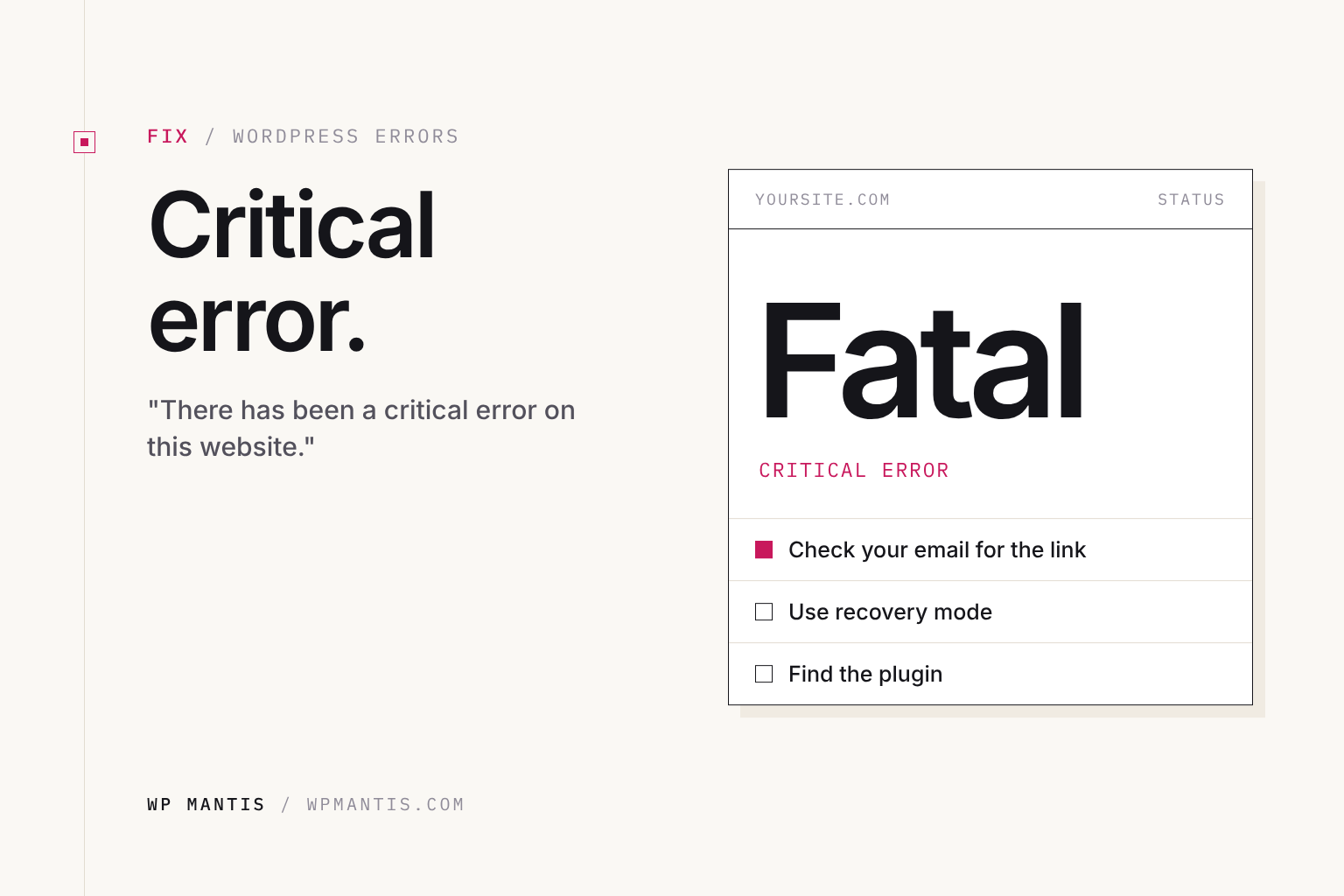
“There has been a critical error on this website.” This is how WordPress reports a PHP fatal error: some code failed badly enough that the page could not finish loading. The message is vague, but the cause is almost always findable in a few minutes.
Step 1: Use recovery mode
When WordPress catches a fatal error caused by a plugin or theme, it emails the site admin address a special recovery mode link. Open it, log in, and WordPress shows which plugin or theme failed with the option to deactivate it. Check spam if you do not see the email. If the email never arrives (common when the site cannot send mail), go to step 2.
Step 2: Find the actual error
Ask your host for the PHP error log, or turn on WordPress logging. In wp-config.php, replace the WP_DEBUG line with:
define( 'WP_DEBUG', true );
define( 'WP_DEBUG_LOG', true );
define( 'WP_DEBUG_DISPLAY', false );
Reload the page and open wp-content/debug.log. Look for the most recent line starting with “PHP Fatal error”. It names a file path, and the folder in that path tells you what to fix:
wp-content/plugins/plugin-name/: that pluginwp-content/themes/theme-name/: your theme or child theme- “Allowed memory size exhausted”: the memory limit
- “Call to undefined function” right after a PHP upgrade: old code that does not support the new PHP version
Step 3: Fix the cause
Plugin
Rename its folder in wp-content/plugins over SFTP to deactivate it. Then update it, replace it, or contact the developer. See troubleshooting a plugin conflict.
Theme
Undo any recent edit to functions.php, or rename the theme folder so WordPress falls back to a default theme.
Memory
Raise the limit: see how to increase the WordPress memory limit.
PHP version
Update the old plugin or theme. If you need the site back immediately, switch to the previous PHP version in your hosting panel while you fix it, then switch back.
Corrupted core files
Rare, but if the error points to wp-admin or wp-includes, reinstall WordPress from Dashboard → Updates → Re-install or upload fresh copies of those two folders. Your content is not affected.
Step 4: Turn debugging off
Set WP_DEBUG back to false and delete debug.log, which can expose file paths publicly.
If the site might be hacked
If the error log points to files you do not recognize, or the error appeared without any update, treat it as a possible compromise. See what to do if your WordPress site is hacked.
Need it fixed now?
Our $79 one-time fix gets the site back, fixed or your money back. Care Plans test updates on staging so critical errors are caught before they reach your live site.