
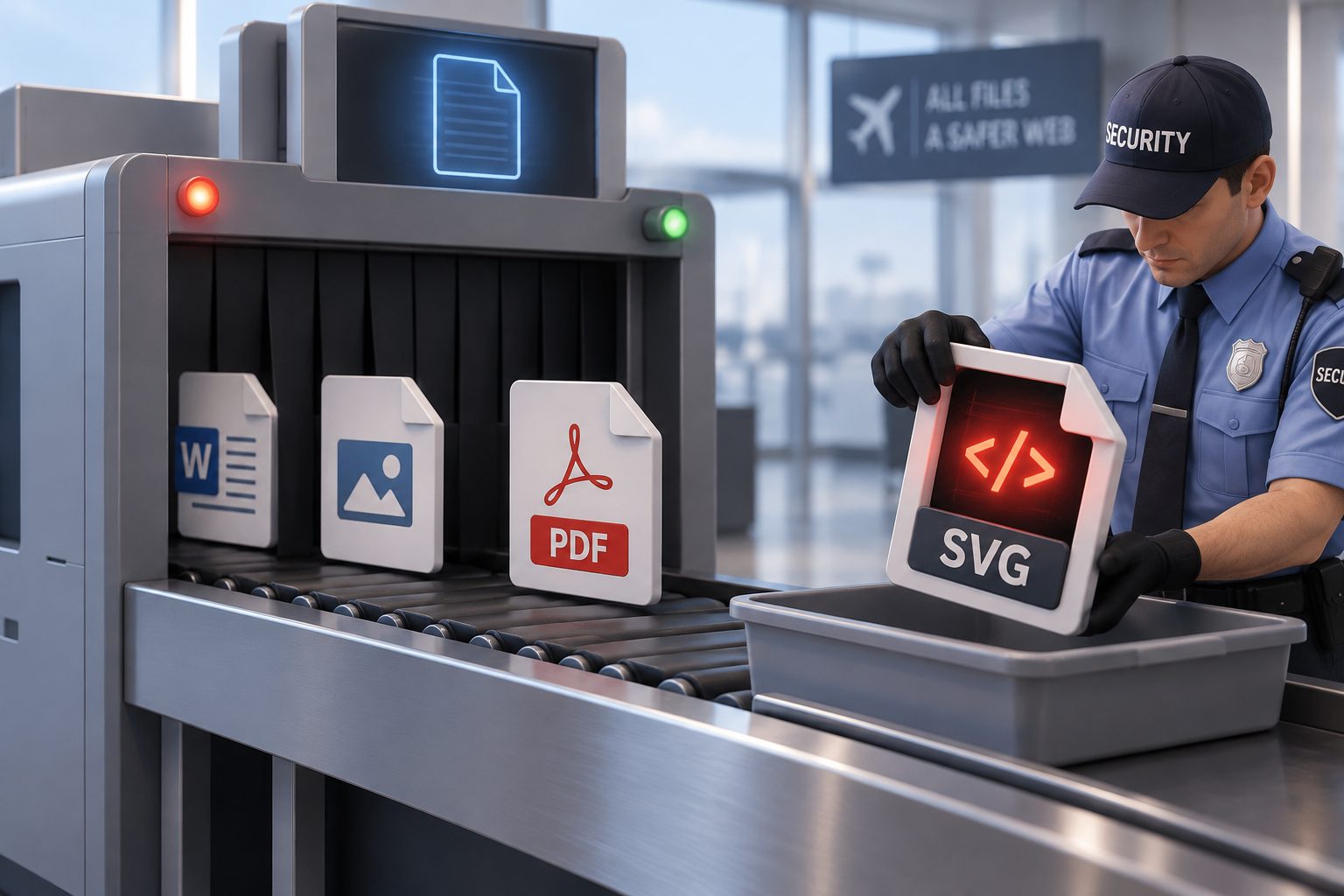
“Sorry, you are not allowed to upload this file type.” means WordPress checked the file’s extension, or its actual contents, against its list of allowed types and said no. Older versions word it as “Sorry, this file type is not permitted for security reasons.”
The list is strict on purpose. Images, documents, audio, and video are allowed. SVGs, fonts, and anything that could run code are not.
Start here: what are you uploading?
- An SVG: not allowed by default because SVG files can contain JavaScript. See the SVG section.
- A font (
.woff,.woff2,.ttf,.otf): not allowed in the Media Library. There are better places for fonts anyway. - A normal file like a JPG, PDF, or CSV that should work: the file’s contents probably don’t match its extension.
- Any file, on a multisite network: the network has its own allowed list. See the multisite section.
Uploading SVG files safely
An SVG is an XML file, not a flat image. It can carry scripts that run when someone opens the file directly in a browser. If an attacker, or a compromised user account, uploads a malicious SVG, it can be used to hijack logged-in admins. That’s why WordPress blocks it.
The safe way to allow SVGs is a plugin that sanitizes each file on upload, stripping out scripts and other dangerous content. Safe SVG is the well-known option. Install it, then limit SVG uploads to Administrators if the plugin offers that setting.
Avoid snippets that only add svg to the allowed list. They make the error go away but upload the file exactly as it is, scripts included.
Uploading fonts
You usually don’t need fonts in the Media Library at all.
- With a block theme, use the Font Library under Appearance → Editor → Styles → Typography, which handles font uploads itself.
- With a classic or child theme, upload the font files over SFTP to a folder in your child theme, such as
wp-content/themes/your-child-theme/fonts/, and load them with@font-facein your stylesheet. - Many page builders and theme frameworks have their own custom font upload screens. Check there first.
Allowing a file type with upload_mimes
For other harmless file types your team needs, you can add them to the allowed list with the upload_mimes filter. Put it in a code snippets plugin or your child theme’s functions.php; our guide to adding code snippets safely covers both.
add_filter( 'upload_mimes', function ( $mimes ) {
    // extension => MIME type
    $mimes['json'] = 'application/json';
    return $mimes;
} );
The key is the file extension, and the value is its MIME type. Use the correct, official MIME type for the format. If the file is still rejected after adding its type, the content check in the next section is the reason. Only add types you understand, and never add anything executable such as php, phtml, js, html, or exe.
You can also limit a type to Administrators by wrapping the additions in if ( current_user_can( 'manage_options' ) ) { ... }.
When an allowed file is still rejected
WordPress also checks uploads by their real contents, not just the extension. If the file’s contents don’t look like what its name claims, WordPress rejects it even if the extension is allowed.
Common causes:
- A file that was renamed instead of converted, such as a
.webpimage renamed to.jpg, or an.xlsxrenamed to.csv. - A CSV or text export from another program that the server’s detection reads as a different type.
- A file that was corrupted during download or export.
- A double extension like
photo.jpg.exe, which is exactly what this check is meant to catch.
The fix is to re-save the file in the right format: open it in an image editor or spreadsheet program and export it fresh, then upload that copy. If uploads fail with a generic “HTTP error” instead, that’s a different problem covered in our HTTP error guide.
About ALLOW_UNFILTERED_UPLOADS
You’ll find advice to add this to wp-config.php:
define( 'ALLOW_UNFILTERED_UPLOADS', true );It gives Administrators (Super Admins only, on multisite) permission to upload any file type, skipping the check entirely. That includes PHP files, and if your server runs PHP inside the uploads folder, anyone who can trigger that upload can run code on your site.
If you must use it for a one-off upload, add it, upload the file, then remove the line immediately. Don’t leave it on. Pair it with a security plugin or server rule that blocks PHP execution in wp-content/uploads.
Multisite: the network’s own list
On multisite, the Super Admin sets allowed extensions for every site under Network Admin → Settings → Network Settings, in the Upload file types field. Add the extension there (space-separated, no dots) and save. The real-contents check still applies.
Need it fixed now?
If you need a file type allowed without opening a security hole, our $79 one-time fix sets it up properly, usually within 24 hours, fixed or your money back. Care Plans include developer support for requests like this from $69 a month.