
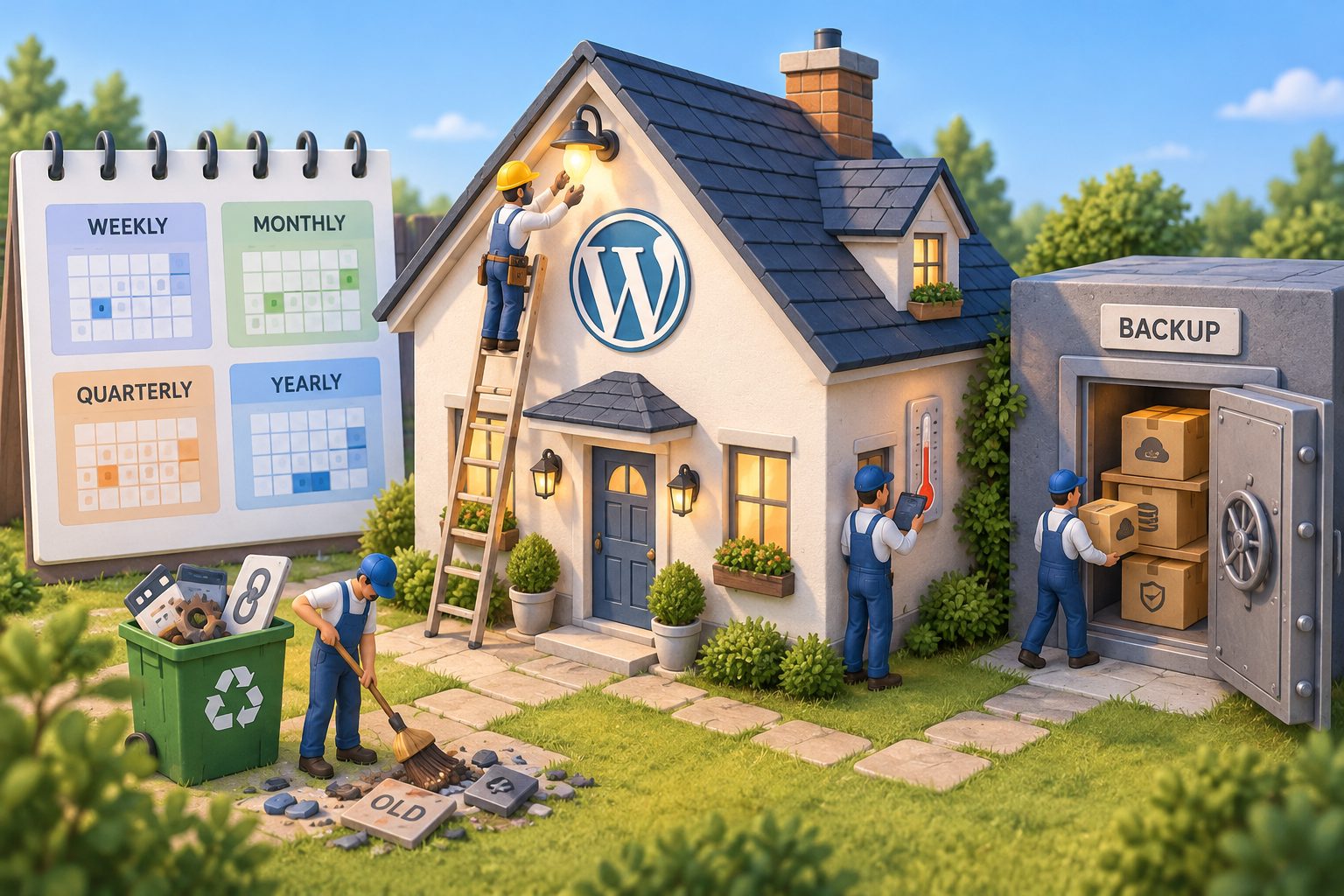
Most WordPress problems don’t arrive all at once. A backup quietly stops running, a contact form stops sending, a plugin goes unmaintained, or an SSL certificate fails to renew. A simple maintenance routine catches those things while they are still small.
This is the checklist we work from, split by how often each task needs doing. Adjust the timing to your site: a busy online store needs more attention than a five-page brochure site.
Before you start
You’ll move faster if these are in place first:
- Logins in one place. WordPress admin, hosting control panel, SFTP, domain registrar, and DNS or CDN accounts, stored in a password manager.
- A staging site for testing updates before they touch the live site. See how to set up a WordPress staging site.
- A maintenance log. A plain spreadsheet with the date, what you updated, and anything odd you noticed. When something breaks later, this is the first place you’ll look.
Weekly
Confirm backups ran (and are stored off the server)
A backup plugin showing “complete” is not proof of a usable backup. Check that the latest one finished, that it includes both the files and the database, and that a copy lives somewhere other than the same hosting account. If the server fails or the site is hacked, a backup stored only on that server may be gone too.
If you’re not sure how your backups are set up, start with our guide to backing up and restoring WordPress.
Apply updates
Check Dashboard → Updates. Read the changelog for anything with a big version jump, test it on staging if the site earns you money, then update live. WordPress installs minor core security releases automatically by default, but plugin and theme updates only run automatically if you turned that on. Our post on auto-updates for plugins and themes covers when that’s a good idea.
Review uptime alerts
Look at your uptime monitor for any outages in the past week, even short ones. Repeated brief outages often point to a resource problem on the server. If you don’t have a monitor yet, set one up that checks every few minutes and alerts you by email or text.
Check security scan results
Review your security plugin’s latest scan, its list of blocked login attempts, and any new administrator accounts you didn’t create. A surprise admin user is a strong sign of a compromise.
Test your forms
Submit each form that matters (contact, quote request, booking) and confirm the email arrives and the entry is saved. Forms break silently, and you usually find out from a customer weeks later. If the email never shows up, see why WordPress isn’t sending emails.
Monthly
Check for broken links
Crawl the site with a desktop crawler or an online link checker, and check the Pages report in Google Search Console for URLs returning 404. We avoid plugins that scan continuously on the server, since they can slow the site down.
Check speed
Run your homepage and one or two key pages through PageSpeed Insights and note the results in your log. A sudden drop usually follows a new plugin, a large unoptimized image, or a change at the host. If the numbers are sliding, work through how to speed up a WordPress site.
Review Site Health and the error log
Open Tools → Site Health and deal with anything listed as critical. Then skim your PHP error log for repeating warnings or fatal errors. A plugin throwing the same error thousands of times a day is a problem even if the site looks fine.
Remove what you don’t use
Delete plugins and themes you’ve deactivated and don’t plan to use. Deactivated code still sits on the server and can still be exploited if it has a vulnerability. Keep one default WordPress theme installed as a fallback.
Quarterly
Audit user accounts
Go to Users → All Users and filter by Administrator. Remove former staff, old contractors, and any account nobody recognizes. Downgrade people who only write content to Editor or Author. Every admin account should have a strong password, and ideally two-factor authentication.
Check your PHP version
You’ll find it under Tools → Site Health → Info → Server. Each PHP version gets security fixes for a limited time, so compare yours against the supported versions list on php.net. If you’re behind, plan the upgrade and test it on staging first.
Test a full restore
Restore a recent backup to a staging site and click around. This is the only way to know your backups actually work, and it’s far better to find out now than during an emergency.
Review your plugin list
For each plugin, check its page on WordPress.org or the vendor’s site. Warning signs: no update in over a year, a notice that it hasn’t been tested with the last three major WordPress releases, or unanswered support threads. Replace abandoned plugins before they become a security issue.
Tidy the database
After a fresh backup, clear out spam and trashed comments, old post revisions, and expired transients. If you use WP-CLI, this removes expired transients safely:
wp transient delete --expiredTo stop revisions piling up in future, you can cap them in wp-config.php:
define( 'WP_POST_REVISIONS', 10 );Yearly
Domain and SSL renewals
Log in to your registrar and confirm auto-renew is on, the payment card hasn’t expired, and the contact email is one you still read. Expired domains are one of the most avoidable outages we see.
Most hosts renew SSL certificates automatically, but renewals can fail after DNS changes or when a CDN sits in front of the site. Check the expiry date in your browser’s padlock menu, and set a reminder a few weeks before it if your host doesn’t renew automatically.
Content review
Read through your key pages as a customer would. Look for old prices, staff who have left, discontinued services, outdated hours, and a stale copyright year. Update your privacy policy if you’ve added new tracking, forms, or third-party tools.
Access and hosting review
List everyone who has access to your hosting, registrar, DNS, and WordPress. Remove anyone who no longer needs it and change shared passwords. While you’re there, check that your hosting plan still fits your traffic and that your theme is still actively supported.
Want someone to handle it?
Our Care Plans cover this whole checklist for you: updates tested on staging, uptime monitoring, verified backups, and a developer to call when something looks wrong, from $69 a month. If something is already broken, our $79 one-time fix gets it sorted, usually within 24 hours, fixed or your money back.