
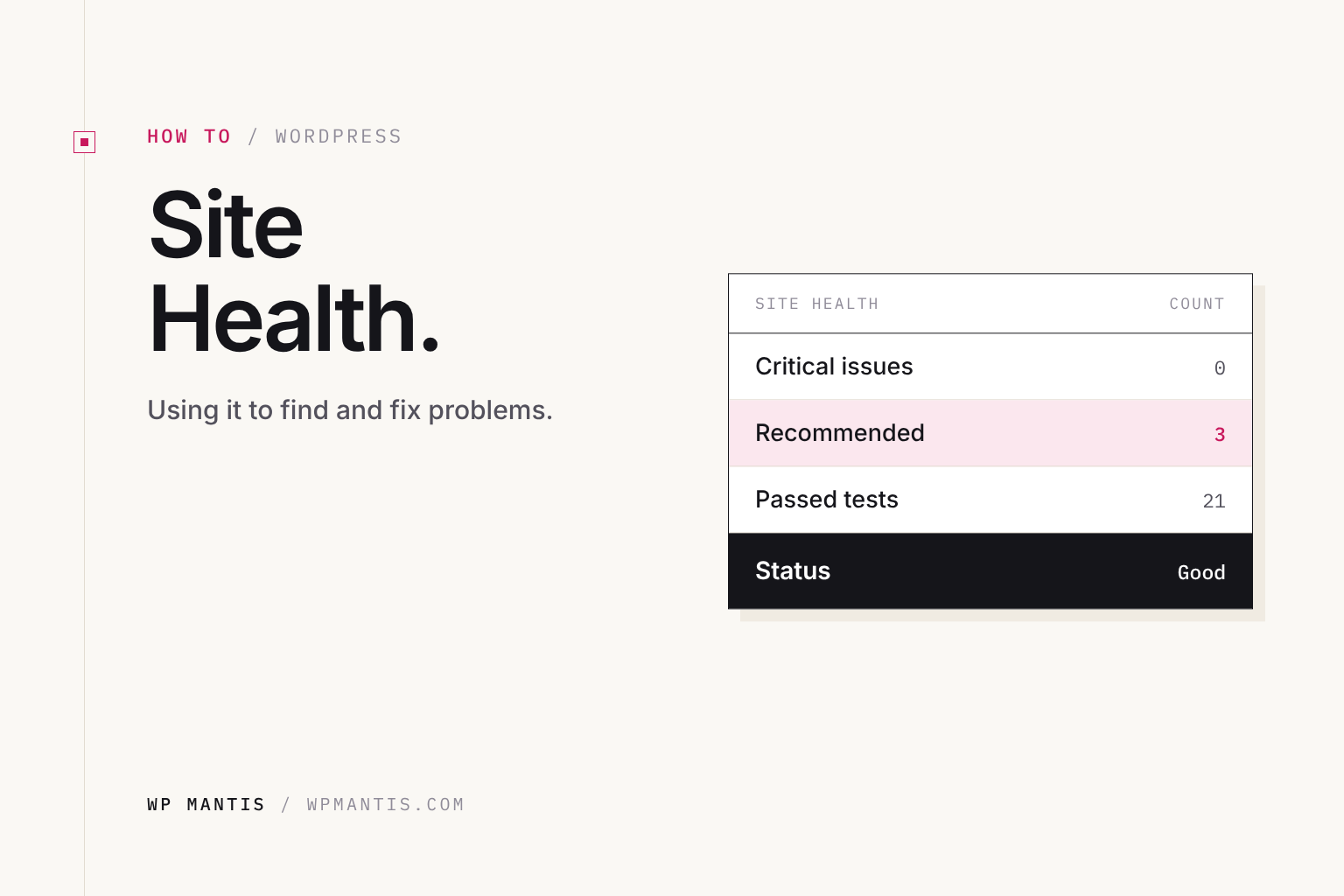
Site Health is a built-in WordPress tool that checks your site for common problems and collects technical details in one place. It is the first screen we look at on any new support request. Here is how to use it.
Where to find it
Go to Tools → Site Health. There are two tabs: Status, with a list of issues and recommendations, and Info, with the full technical details of your site and server.
Reading the Status tab
Results are grouped as critical issues, recommended improvements and passed tests. The ones that matter most:
- Outdated PHP version. Old PHP is slower and no longer receives security fixes. Ask your host to upgrade after testing.
- The REST API encountered an error. This breaks the block editor (“Updating failed”) and many plugins. See fixing Updating Failed.
- Loopback request failed. Can stop scheduled tasks and plugin and theme file editing from working. Often a firewall or security plugin.
- Scheduled event has failed / is late. WP-Cron is not running reliably, so scheduled posts, backups or emails may be delayed.
- Inactive plugins or themes. Delete them; they can still be exploited.
- Background updates are not working. Security releases are not installing automatically.
- No persistent object cache. A recommendation, not a problem. Worth enabling on busy sites if your host supports Redis.
Do not chase a perfect score. Some recommendations do not apply to every site.
Using the Info tab for support
The Info tab lists your WordPress, PHP and database versions, server settings, active theme, every plugin and its version, and important constants. Click Copy site info to clipboard and paste it into a support request. It answers most of the first questions a developer or plugin support team will ask, and it does not include passwords.
Troubleshooting mode
Install the free Health Check & Troubleshooting plugin to add a troubleshooting mode: it disables plugins and switches to a default theme for your login session only, so you can find a conflict without affecting visitors. Our plugin conflict guide shows how to use it.
Recovery mode
Site Health is part of the same system that powers recovery mode. When a plugin or theme causes a fatal error, WordPress emails the admin a link to log in with the broken code paused. See handling a critical error.
Want someone to keep an eye on it?
We check Site Health and fix what it finds as part of every Care Plan. For a single issue, try our $79 one-time fix.